| [an error occurred while processing this directive] |
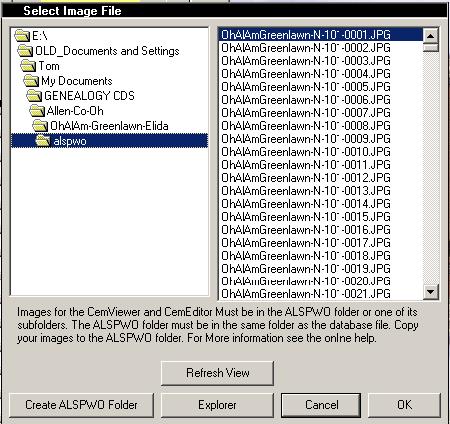
HelpPicture Folders - Image / ALSPWO DialogSelecting ImagesALSPWO IMAGE DialogAfter double-clicking on an image field in the CemEditor or using the "Get" button in CemEditor2 the following dialog will appear. It is not necessary to use this dialog. Photos can be dragged and dropped on the preview images in the CemEditor
Pictures must be in the ALSPWO folder on one of its subfolders for the CemEditor to use them. Select a photo by clicking on it using the dialog above and then click on "OK"
|